
ezyLiv+ Camera

Quick Installation Guide

EZ-P34Q

Thank you for choosing CP Plus ezyLiv+ camera.

Get Started using your new devices by downloading ezyLiv+ app, one convenient app that manages everything straight from your smart phone. Easily connect to your home Wi-Fi and control multiple devices from the touch of your fingertips
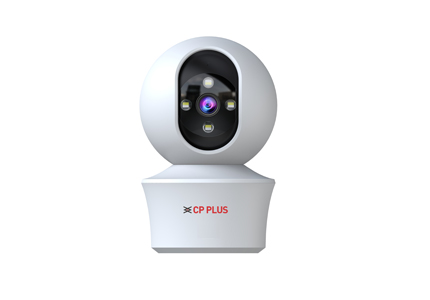

What's in the Box

  • ezyLiv+ Wi-Fi Camera

  • USB Cable

  • Power Adapter

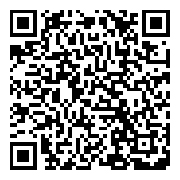
  • Scan QR Code to Download Quick Installation Guide

Get Ready

  • Know your Wi-Fi network and password.
  • Make sure your mobile device is running iOS 12.0 of higher or Android 10.0 or higher.
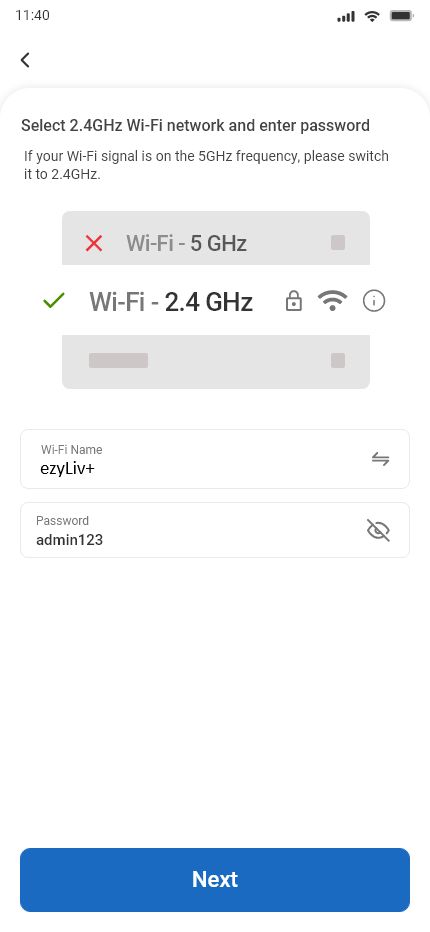
  • Make sure you're connecting to a 2.4GHz Wi-Fi network (It can't connect to 5GHz networks).
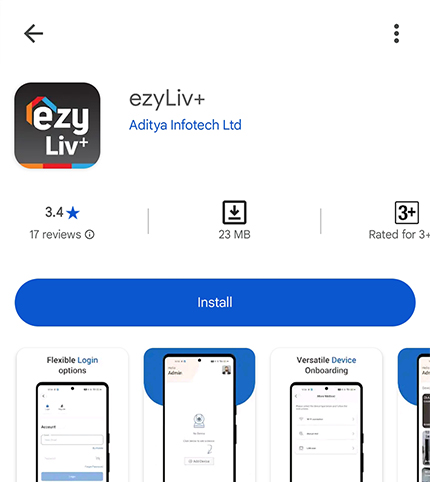
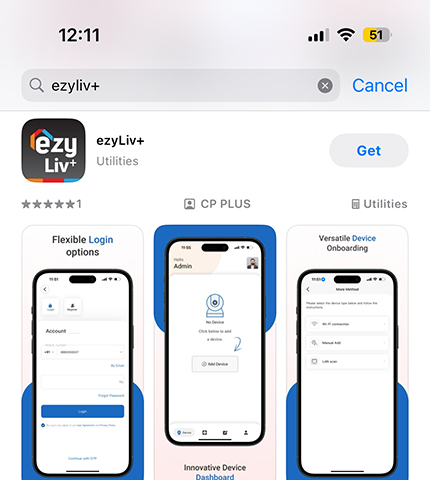
  1. Download the ezyLiv+ app from App Store or Google Play.

    • Scan QR Code to Download
      Mobile App

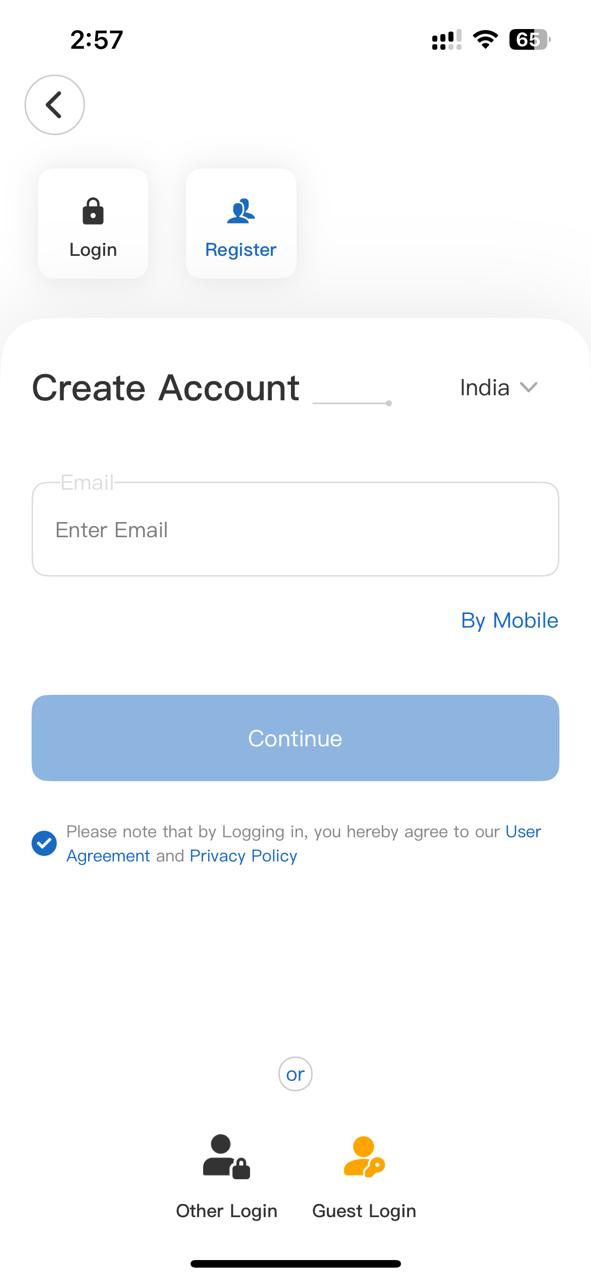
  2. Register your account on ezyLiv+ application.

    • STEP 1

      Select the country.

      Enter the email address.

    • STEP 2

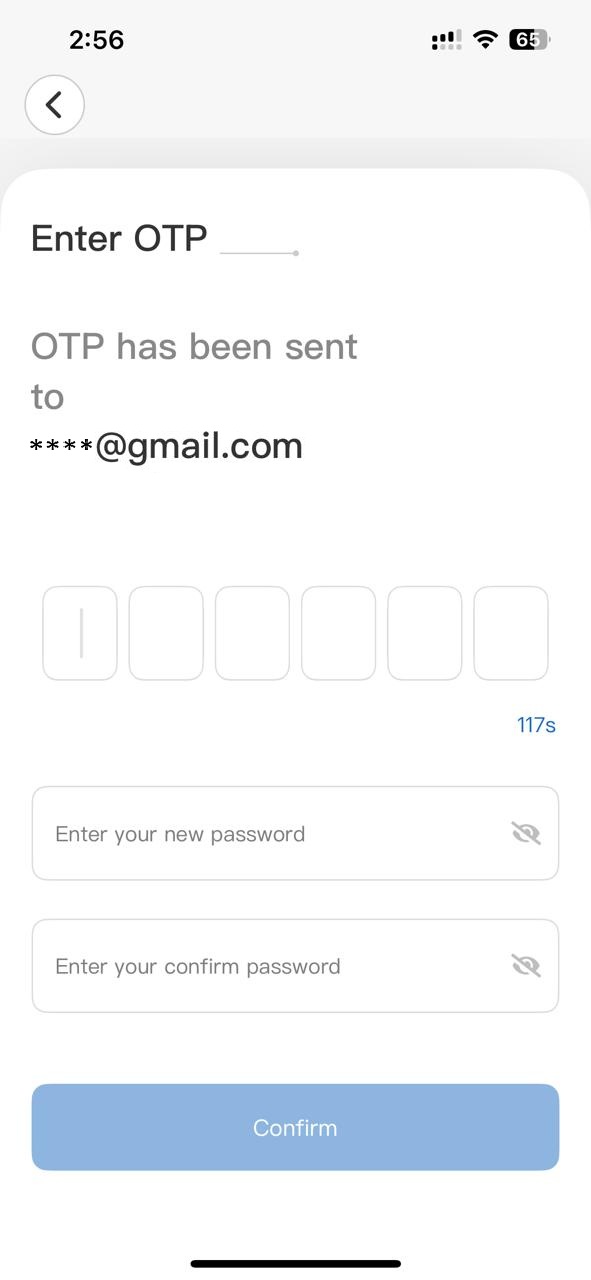
      Enter the verification code
      and create a password.

  3. Plug in

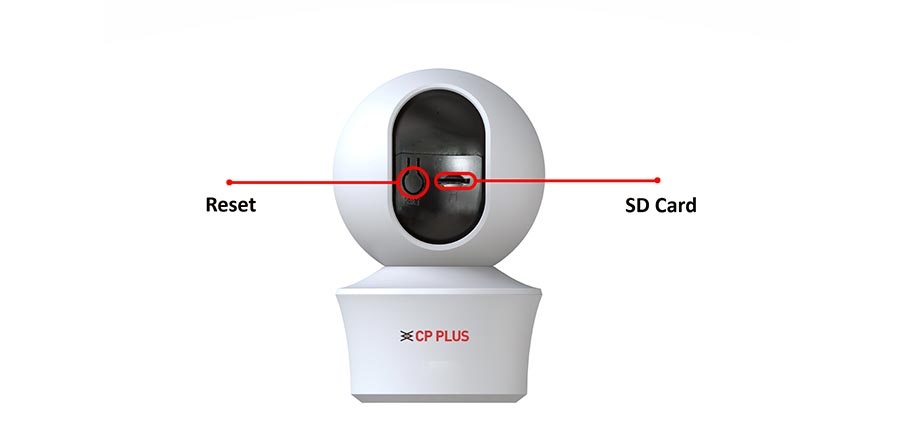
    How do I reset my camera?

    • Use the reset pin to press the Reset Button for several seconds until the camera starts to beep.
    • Optional: Insert Micro SD card.
  4. Add Camera

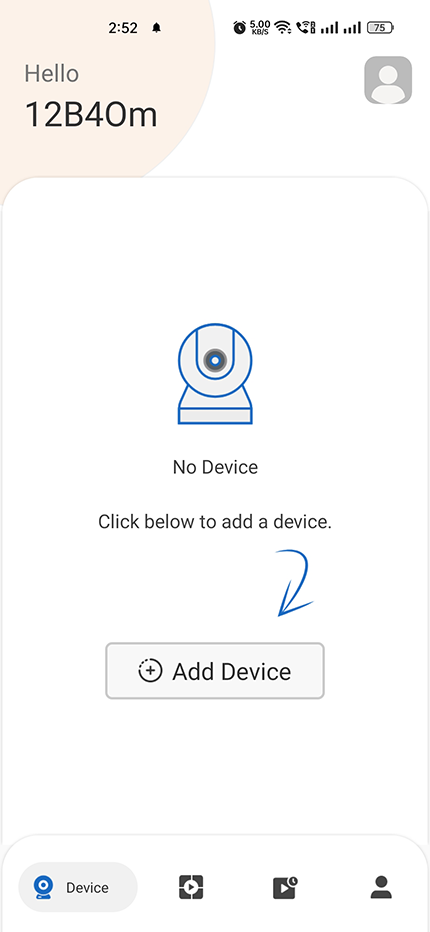
    • Open ezyLiv+ app, click “+” on the top right corner of the "Home" page, then select "Specific Device type to add’’
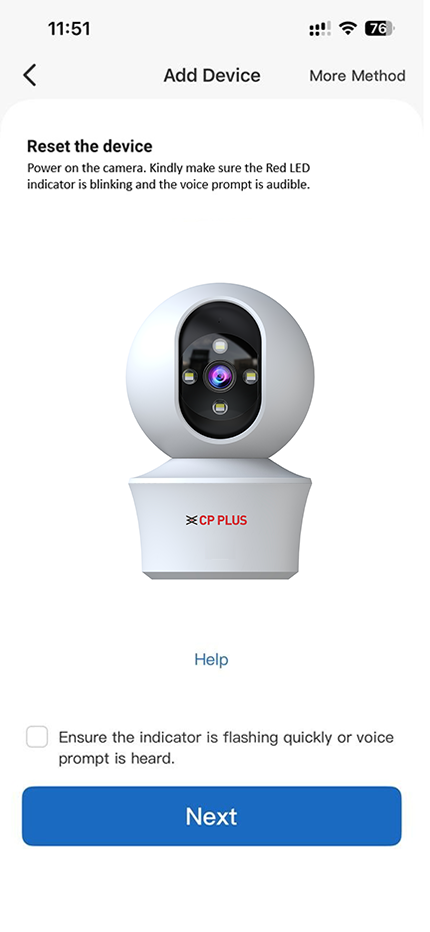
    • Make sure the Red LED indicator is blinking, and the voice prompt is audible.
    • Enter your ‘’Wi-Fi SSID and password’’, and click ‘’Next’’.
    1. Add Camera

      • Read the instruction about "Scan OR code and click "Continue".
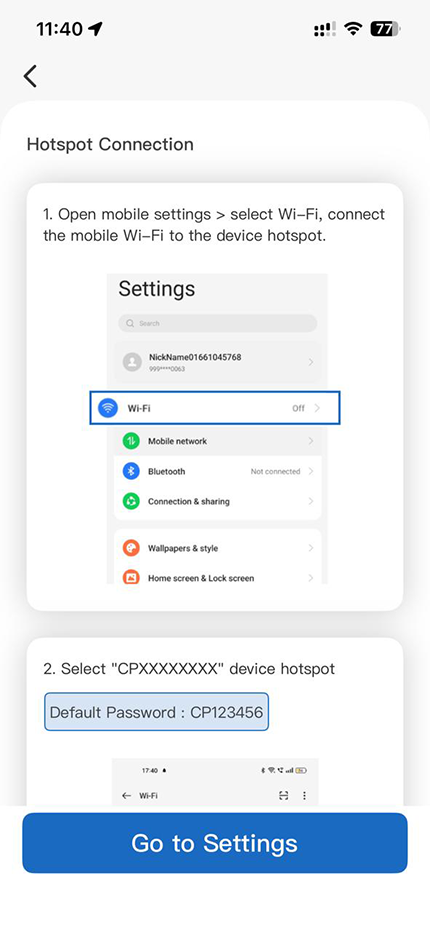
      • Open the mobile settings > select Wi-Fi, connect the mobile Wi-Fi to the device hotspot
      • Select “CPXXXXXXXX” device hotspot, Default Password: CP123456
      • Keep your mobile Wi-Fi connected to device hotspot during the adding process
      • After connecting successfully, return to APP
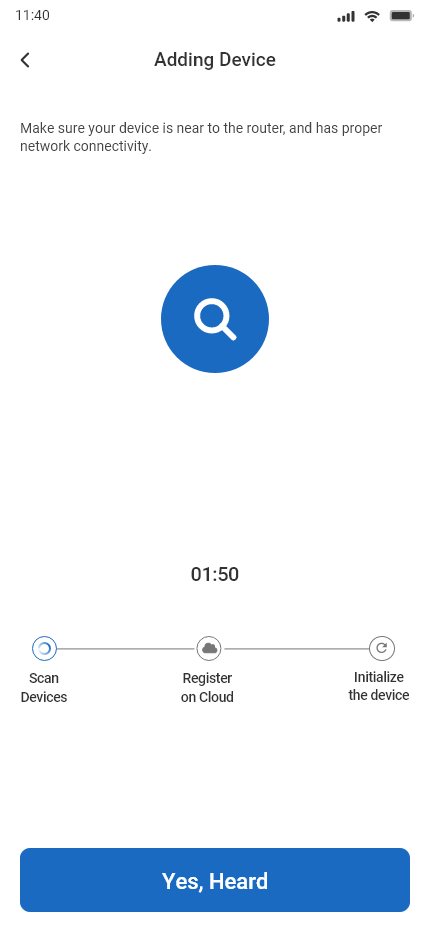
      • Scan the QR Code on your phone with camera. Heard a voice prompt, click I heard a prompt.
    2. Add Camera

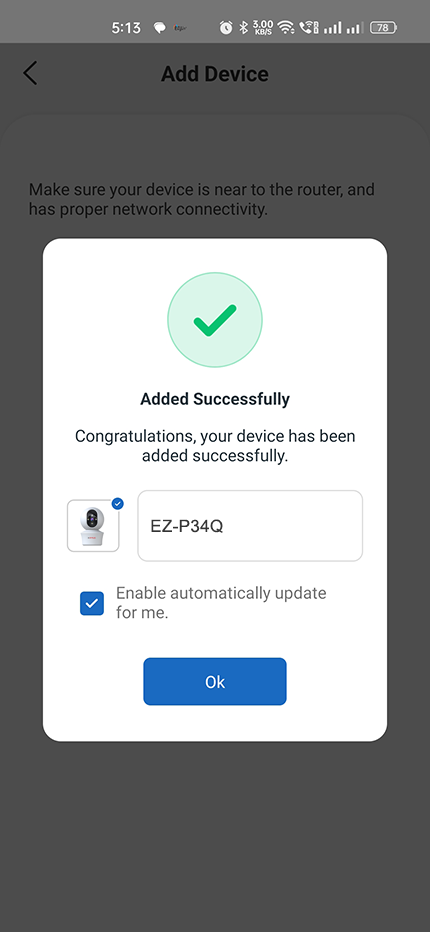
      • When the indicator light on the device turn to steady blue light, the network configuration is completed.
      • Please refer to the specific App interface if there are any difference.

Frequently Asked Questions

  1. Can I share camera with family and friends?

    Yes, you can share your cameras with family and friends who will have access to view the camera.

  2. What's the Wireless Range?

    The range of your home Wi-Fi is heavily dependent on your home router and the conditions of the room. Check with your for exact range data.

  3. The camera appears offline or unreachable.

    If your camera appears offline or unreachable, first ensure it is properly connected to a power adapter. During the Wi-Fi setup, confirm that your Wi-Fi network is active and functioning correctly. If the Wi-Fi signal is weak or unstable, try resetting your Wi-Fi router and reconnecting the camera to the network. These steps will help resolve most connectivity issues.

  4. Cannot connect to your Wi-Fi network.

    To resolve the issue of not being able to connect your camera to the Wi-Fi network, ensure that the camera is within the router's range and that you enter the correct Wi-Fi password during the setup process. Double-check that both the Wi-Fi name (SSID) and password are entered accurately to avoid any connection failures. Properly following these steps will help establish a successful connection between the camera and your Wi-Fi network.

  5. How many cameras can I control?

    The CP Plus app can technically manage up to 200 cameras, providing extensive control and monitoring capabilities for large setups. However, it also depends on your network’s capacity, particularly your router's limit. Each router has a specific bandwidth and device connection limit.

Voice control work with Google Assistant

Technical Specifications

  • Resolution:
    EZ-P34Q= 2304x1296@15fps, H.265 encoding
  • Field of view:
    EZ-P34Q= 86.2° (H), 46.1° (V), 102.6° (D)
  • Audio: Internal Speaker and Microphone
  • Storage: supports up to 256GB Micro SD card (not included, please refer to the respective data sheet.)
  • Wi-Fi: IEEE 802.11b/g/n, 2.4GHz (not compatible with 5GHz Wi-Fi networks)